Unencrypted DNS
DNS?
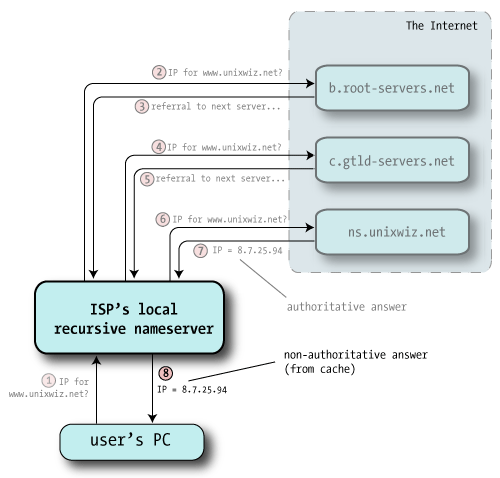
A recursive DNS resolver
DNS is basically the phonebook of the internet. Instead of you remembering long IP addresses, your device asks a DNS server, “Hey, what’s the IP of this website?” and gets the answer back. Before it even sends anything out, your device actually checks its own DNS cache first. If it has seen the domain recently, it just grabs the old entry and uses it. If not, the request goes out to different DNS servers (root → TLD → authoritative) until the final IP is found. It’s a pretty simple process in practice, but a lot happens behind the scenes. The diagram above is more or less how the whole chain works.
Whats my DNS?
DNS servers are usually configured automatically by the router. When a user connects to a WiFi network, the router assigns the client an IP address through DHCP (Dynamic Host Configuration Protocol), unless the device is manually configured. Along with the IP address, DHCP also provides other network configuration details such as the default gateway and the DNS nameservers. This means the client can immediately start resolving domain names using the DNS servers specified by the router. In most home and office networks, the router itself forwards DNS queries to the DNS servers configured by the Internet Service Provider (ISP). Because ISPs typically preconfigure these DNS settings on the router, their DNS infrastructure is used for domain name resolution by default, giving them control over how your DNS queries are handled.
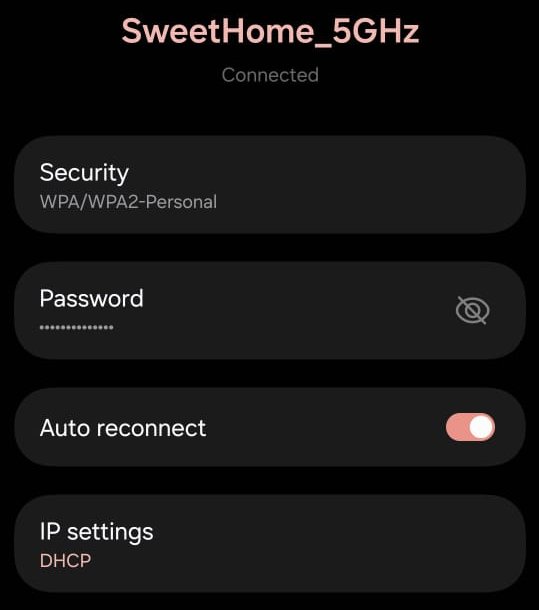
IP Settings configured to DHCP
Problems
Since DNS servers are often maintained by your local ISP, they essentially determine how your DNS requests are handled. Traditional DNS typically uses UDP port 53 (User Datagram Protocol), and most of these requests are sent in an unencrypted form. Because the traffic is unencrypted, it becomes vulnerable to sniffing attacks. Anyone with basic networking knowledge can open a tool like Wireshark and easily capture and inspect DNS queries as they pass through the network. This risk isn’t limited to ISPs or large network operators anyone connected to the same local network can potentially sniff DNS traffic as well. For example, in public spaces such as coffee shops, hotels, or coworking spaces, users share the same subnet on open or semi open Wi Fi networks. An attacker sitting on the same network can capture unencrypted DNS queries and see which websites nearby users are trying to visit. These queries are in plain text, meaning they can reveal the websites you are trying to access, and automated logging systems can store this information to build a profile of your browsing habits. While DNS is not the only source of such leakage every packet still contains the destination IP address unencrypted DNS forms a baseline where a user’s privacy can be compromised.
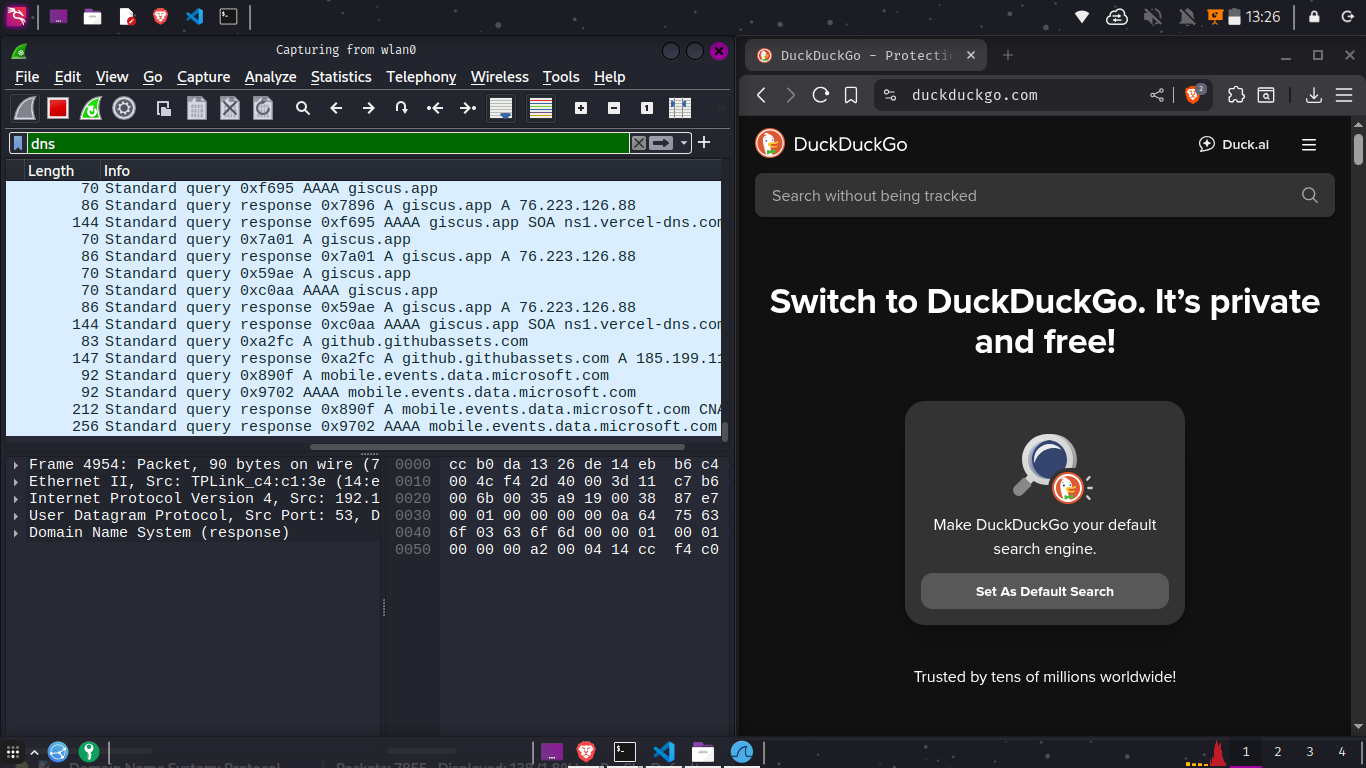
Wireshark showing my unencrypted DNS query
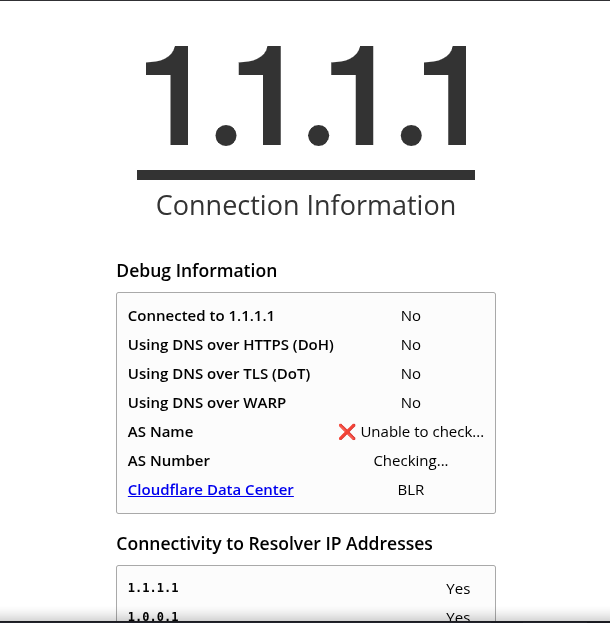
Cloudflare Report
How to check if my DNS is leaking?
You can run a DNS leak test while connected to your current network. A DNS leak basically means your device is still talking to your ISP’s DNS server even though you’ve set something else, like Cloudflare or AdGuard. So you think you’re using encrypted DNS, but in reality your queries are still going out in the open. Doing a DNS leak test quickly shows who’s actually resolving your domains. If you see servers you don’t recognize, something in your setup is leaking. Take a look at these cool websites
- DNSLeakTest.com: Standard & extended leak tests
- BrowserLeaks DNS: Detailed DNS resolver inspection
- IPLEAK.net: DNS, WebRTC, and IP leak checks
- Cloudflare DNS Checker (1.1.1.1/help): Confirms DoH/DoT status
- DNSCheck.tools: Quick DNS resolver identification
Solutions
A few solutions to counter this issue are using DoT (DNS over TLS) or DoH (DNS over HTTPS), both of which encrypt DNS queries to prevent anyone on the network whether an ISP, a spoofy actor on the network, or someone sniffing traffic on a public WiFi subnet from easily viewing or tampering with them. Once you decide to use encrypted DNS, you then need to choose a trusted DNS provider. Personally, IMO I use Cloudflare. I got my Cloudflare configured on my Android phones and my laptops. Cloudflare’s DNS resolvers are publicly accessible and widely used for IP resolution, making them a popular choice for users looking to improve both privacy and performance. I simply can't strightaway trust any kind of XYZ network I am connected too. Even my college has got the same issue of strightaway sending DNS requests in plain text. I could litrally see those on my wireshark. The best thing about it is, it has got multiple VLANS and subnets and when a user gets connected to the system, it just allocates a random subnet. Another option some users prefer is using DNS resolvers that provide built in ad and tracker blocking. Services like AdGuard DNS, NextDNS, or control list based Pi hole setups can filter out domains associated with ads, trackers, malware, and telemetry before your device ever connects to them. These DNS providers maintain large blocklists of advertising and tracking domains. When your device attempts to resolve one of these domains, the DNS server simply refuses to return a valid IP address (or returns a non routable one), effectively preventing the ad or tracker from loading. This approach is system wide, meaning it works for all apps and browsers on the device without needing browser extensions. Ad blocking DNS doesn't replace encrypted DNS; in fact, many of these services support DoH, DoT, and DNSCrypt, allowing you to combine privacy, security, and ad filtering in one setup.
- Android Private DNS
- Open
Settings > Network & internet - Tap
Advanced > Private DNS - Select
Private DNS provider hostname - Enter
one.one.one.oneand Save
- Open
- WiFi network (unencrypted)
- Open
Settings > Network & internet > WiFi - Long press your WiFi network >
Modify network - Advanced options > IP settings: set to
Static(or edit DNS fields) - Set DNS 1:
1.1.1.1, DNS 2:1.0.0.1> Save
- Open
- Linux
- Add Cloudflare GPG key:
curl -fsSL https://pkg.cloudflare.com/cloudflare-main.gpg | sudo tee /usr/share/keyrings/cloudflare-main.gpg >/dev/null - Add Cloudflared APT repository (Debian bookworm):
echo "deb [signed-by=/usr/share/keyrings/cloudflare-main.gpg] https://pkg.cloudflare.com/cloudflared bookworm main" | sudo tee /etc/apt/sources.list.d/cloudflared.list - Update and install Cloudflared:
sudo apt update
sudo apt install cloudflared - Create systemd service:
sudo tee /etc/systemd/system/cloudflared.service >/dev/null <<EOF [Unit] Description=cloudflared DNS over HTTPS proxy After=network.target [Service] ExecStart=/usr/bin/cloudflared proxy-dns Restart=on-failure [Install] WantedBy=multi-user.target EOF - Reload systemd and enable service:
sudo systemctl daemon-reload
sudo systemctl enable --now cloudflared - Set resolver to use DoH:
sudo nano /etc/resolv.conf
Add:
nameserver 127.0.0.1
- Add Cloudflare GPG key:
- Windows (DoH built-in)
- Open
Settings > Network & Internet - Click
Propertieson your active network (WiFi or Ethernet) - Scroll down and click
Editunder “DNS server assignment” - Change the dropdown to
Manual - Enable
IPv4 - Set:
Preferred DNS:1.1.1.1
Alternate DNS:1.0.0.1 - Under “DNS over HTTPS”, set both entries to On
- Click
Save
- Open
- macOS (using encrypted DNS profiles)
- Download Cloudflare’s DoH profile:
https://1.1.1.1/dns/ - Under “DNS over HTTPS”, download the Apple Profile
- Open the downloaded
.mobileconfigfile - macOS will open it in System Settings > Profiles
- Click
Install - Confirm again if prompted
- After installation, your Mac will route DNS through Cloudflare DoH system wide
- Download Cloudflare’s DoH profile:
Conclusion
Securing DNS isn’t some magic “fix everything” button, but it is one of the easiest things you can do to stop your ISP or anyone on the same network from seeing every site you try to visit. Whether you go with Cloudflare, AdGuard, NextDNS, or run something yourself, using encrypted DNS (DoH/DoT) at least makes sure your requests aren’t flying around in plain text. Sure, encrypted DNS might add a tiny bit of delay sometimes, but honestly it’s a small price to pay for not giving your entire browsing history away for free.